How to Deploy Your Project Online for Free: Student Guide
Subtitle: A simple final-year student guide to hosting HTML, React, MERN, PHP, Node.js, Django, Flask, and database-based projects with a live demo link.
Introduction
Your project may run perfectly on your laptop, but that is not enough during a viva, project demo, internship application, or portfolio review.
The real problem starts when your teacher says, “Send me the live link,” and your project still works only on localhost.
Deployment solves that problem.
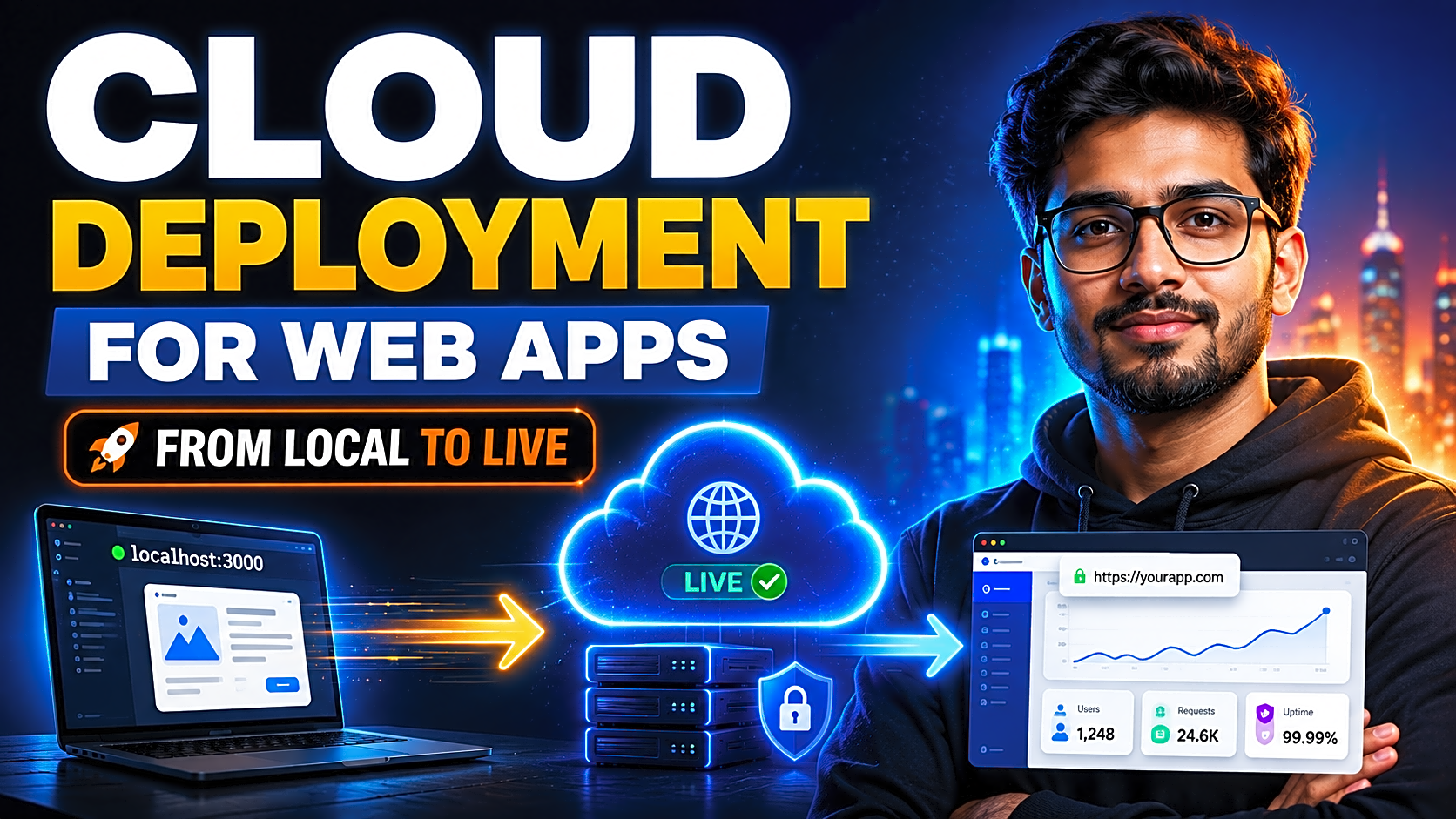
When you deploy your project online, you convert your local project into a live website or web app that anyone can open through a URL. For final-year students, this makes your project easier to test, easier to present, and more professional than a local-only demo.
In this guide, you will learn how to deploy your project online using GitHub Pages, Netlify, Vercel, Render, shared hosting, cPanel, and database hosting platforms. You will also understand which platform is best for HTML/CSS/JavaScript, React, MERN, PHP/MySQL, Node.js, Django, Flask, and other student projects.
Quick Answer: How Do You Deploy a Project Online?
To deploy your project online, first upload your code to GitHub, choose a hosting platform based on your project type, configure the build command and output folder, add environment variables, connect your database if required, and publish the live URL. Static projects can use GitHub Pages or Netlify. React and Vite projects work well on Vercel or Netlify. Backend projects such as Node.js, Express, Django, and Flask need platforms like Render. PHP/MySQL projects usually need shared hosting, cPanel hosting, or a VPS.
What Is Project Deployment?
Project deployment means moving your project from your local computer to an online server so users can access it through a live URL.
A local project usually runs through:
- localhost
- XAMPP/WAMP
- local MongoDB or MySQL
- local Node.js server
- local Python server
A deployed project runs through:
- live frontend URL
- hosted backend URL
- online database
- production environment variables
- HTTPS-enabled public access
For students, deployment is not only a technical step. It is proof that your project is complete, testable, and presentation-ready.
Why Deployment Matters for Final-Year Students
Many students complete the code and report but skip deployment. That can create problems during viva because the examiner may not want to install dependencies, import a database, start a server, or troubleshoot your laptop setup.
A live project link gives you several advantages:
- You can share one URL with your guide or examiner.
- Your viva demo becomes faster and smoother.
- Your resume looks stronger with GitHub and live demo links.
- Your project can be tested on mobile, tablet, and desktop.
- Your portfolio becomes more credible.
- Your project looks more complete than a local-only submission.
For example, if you built an online food ordering system, a live link allows your teacher to test login, menu browsing, cart, checkout, order history, and admin panel without installing anything.
Best Hosting Platform by Project Type
|
Project Type |
Best Platform |
Use Case |
Important Note |
|
HTML, CSS, JavaScript |
GitHub Pages |
Static website, portfolio, landing page |
No backend or database support |
|
React, Vue, Angular, Vite |
Netlify or Vercel |
Frontend projects |
Set correct build command and output folder |
|
Next.js |
Vercel |
Modern frontend/full-stack app |
Strong framework support |
|
Node.js / Express |
Render |
Backend API or web app |
Needs start command and environment variables |
|
Django / Flask |
Render |
Python backend project |
Needs requirements file and production server command |
|
PHP / MySQL |
cPanel, shared hosting, VPS |
Traditional college projects |
Needs PHP server and MySQL database |
|
MERN Stack |
Vercel + Render + MongoDB Atlas |
Full-stack web app |
Deploy frontend, backend, and database separately |
Step 1: Prepare Your Project Before Deployment
Before uploading your project online, clean your folder properly.
Your project should include:
- proper folder structure
- README.md
- .gitignore
- package.json for Node.js or React projects
- requirements.txt for Python projects
- database file or migration instructions
- screenshots folder
- setup instructions
- .env.example
Never upload passwords, database credentials, JWT secrets, API keys, or personal email credentials to a public GitHub repository.
A good .env.example file may look like this:
DATABASE_URL=your_database_url
JWT_SECRET=your_jwt_secret
PORT=5000
This helps another developer understand the setup without exposing your real private values.
Step 2: Push Your Project to GitHub
Most hosting platforms connect directly with GitHub. So, first upload your project to a GitHub repository.
Use this basic Git workflow:
git init
git add .
git commit -m "Initial project upload"
git branch -M main
git remote add origin YOUR_REPOSITORY_URL
git push -u origin main
After this, your code is ready to connect with GitHub Pages, Netlify, Vercel, Render, or another hosting platform.
Step 3: Deploy Static Projects Using GitHub Pages
GitHub Pages is best for simple static projects such as portfolios, documentation pages, HTML/CSS/JavaScript websites, and landing pages.
Steps:
- Open your GitHub repository.
- Go to Settings.
- Open Pages.
- Select the branch, usually main.
- Choose root folder or /docs.
- Save the setting.
- Wait for GitHub to generate your live URL.
Use GitHub Pages only when your project does not need a backend, login system, database, PHP processing, or server-side logic.
Step 4: Deploy React, Vite, Vue, or Angular Projects
For frontend frameworks, Netlify and Vercel are beginner-friendly choices.
Common deployment steps:
- Create an account on Netlify or Vercel.
- Click New Project or Import Project.
- Connect your GitHub account.
- Select your repository.
- Add build command.
- Add output folder.
- Click Deploy.
|
Framework |
Build Command |
Output Folder |
|
React with Vite |
npm run build |
dist |
|
React CRA |
npm run build |
build |
|
Vue |
npm run build |
dist |
|
Angular |
ng build |
dist/project-name |
|
Next.js |
Auto-detected |
Auto-detected |
After deployment, test every page, button, image, form, route, and mobile view.
Step 5: Deploy Backend Projects Using Render
Backend projects need a server. This includes Express.js, Node.js, Django, Flask, FastAPI, and similar applications.
For Node.js, your package.json should include a start script:
{
"scripts": {
"start": "node server.js"
}
}
For Django or Flask, make sure your requirements.txt file is present and your start command is production-ready.
General Render deployment steps:
- Create a Render account.
- Click New Web Service.
- Connect your GitHub repository.
- Select the branch.
- Add build command.
- Add start command.
- Add environment variables.
- Deploy the service.
- Copy your backend live URL.
- Replace local API URLs in the frontend with the deployed backend URL.
Do not keep http://localhost:5000 inside your production frontend code.
Step 6: Connect Your Database
Database deployment depends on your stack.
For MERN projects, MongoDB Atlas is commonly used. For PostgreSQL projects, Render Postgres, Neon, or Supabase can work. For PHP/MySQL projects, shared hosting or cPanel hosting is usually easier because MySQL support is already available.
Database checklist:
- Import tables or collections.
- Create a secure database user.
- Add connection string in environment variables.
- Do not expose database credentials in frontend code.
- Test login, registration, insert, update, delete, and search.
- Confirm admin panel data is saving online.
The most common student deployment issue is simple: the frontend opens, but the database does not connect. Always test the complete user flow before sharing your final link.
Step 7: Common Deployment Errors and Fixes
|
Error |
Likely Cause |
Fix |
|
Website shows blank page |
Wrong build folder or route path |
Check dist, build, or base path |
|
API not working |
Frontend still uses localhost |
Replace localhost with deployed backend URL |
|
Login fails online |
Missing environment variables |
Add .env values in hosting dashboard |
|
Database not connecting |
Wrong connection string or access rules |
Check database URL, username, password, and IP access |
|
404 after page refresh |
Single-page app routing issue |
Add redirect/rewrite configuration |
|
Images not loading |
Wrong path or case mismatch |
Use correct relative paths and file names |
|
Render app slow first time |
Free service may sleep after inactivity |
Wait for restart or upgrade plan if needed |
|
Build failed |
Missing dependency or wrong Node/Python version |
Check deployment logs and package files |
Deployment logs are your best friend. Whenever the project fails online, open the logs first instead of guessing.
Real Example: Deploying an Online Food Ordering Project
Suppose your final-year project is an online food ordering system built with React, Node.js, Express, and MongoDB.
A good deployment plan would be:
- Frontend: Vercel
- Backend: Render
- Database: MongoDB Atlas
- Repository: GitHub
- Environment variables: backend URL, database URL, JWT secret
- Demo login: separate test customer and admin account
After deployment, test:
- customer registration
- login
- menu listing
- cart
- order placement
- admin product management
- order status update
- database record creation
This type of live demo is much stronger than showing only screenshots in your project report.
Viva Submission Checklist
Before submitting your project, prepare these items:
- GitHub repository link
- live demo link
- admin login details for demo
- user login details for demo
- project screenshots
- README file
- database setup note
- technology stack list
- backup ZIP file
- short viva demo script
Also add your live project link to your resume and developer portfolio. A working project link is stronger than simply writing “project completed.”
Need Ready Source Code or Setup Support?
If you are stuck with deployment, database connection, PHP/MySQL setup, Node.js errors, or project demo preparation, FileMakr provides ready-to-run final-year project source code, live demos, database files, documentation, and setup support for students.
This is useful when your deadline is close and you need a working project with frontend, backend, database, and clear setup instructions.
FAQ
What is the easiest way to deploy a student project online?
The easiest way is to push your project to GitHub and connect it with GitHub Pages, Netlify, Vercel, or Render depending on your technology stack.
Can I deploy my final-year project for free?
Yes, many static, frontend, and basic backend projects can be deployed on free plans. However, free plans may have limits, so test your project before using the link for viva or submission.
Which platform is best for React project deployment?
Vercel and Netlify are both good options for React projects. For React with Vite, use npm run build as the build command and dist as the output folder.
Can I deploy a PHP MySQL project on GitHub Pages?
No. GitHub Pages supports static websites only. PHP/MySQL projects need a PHP-supported server and MySQL database, such as shared hosting, cPanel hosting, or VPS hosting.
How do I deploy a MERN stack project online?
Deploy the React frontend on Vercel or Netlify, the Node.js/Express backend on Render, and the MongoDB database on MongoDB Atlas. Then connect the frontend to the live backend URL.
Why does my project work locally but fail online?
Common reasons include missing environment variables, wrong API URL, database connection error, incorrect build folder, CORS issue, port configuration problem, or using localhost in production.
Should I add my live project link to my resume?
Yes. A live project link improves your credibility because recruiters and evaluators can directly test your work.
Conclusion
Deploying your project online is one of the best ways to make your final-year project look complete, professional, and easy to evaluate.
Start by cleaning your project folder, pushing your code to GitHub, choosing the right hosting platform, adding environment variables, connecting your database, and testing the full live workflow.
For students, the goal is not only to host the project. The real goal is to make your project easy to demonstrate, easy to verify, and useful for your viva, resume, portfolio, and internship applications.